
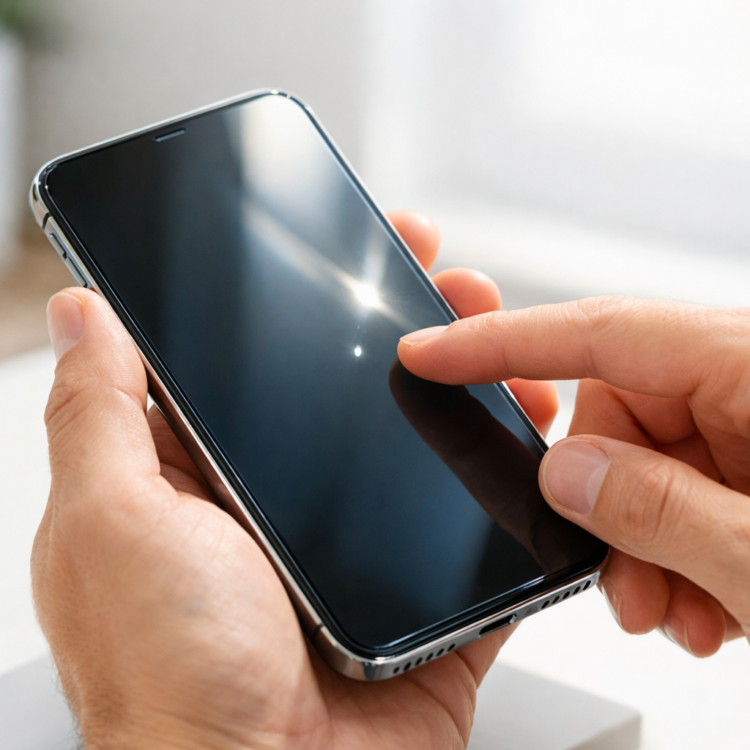
Learning how to test used smartphones before buying is essential if you want to avoid ending up with a lemon. Every year, thousands of buyers lose money on faulty devices that looked perfect in photos but had hidden problems. However, with the right inspection checklist, you can protect yourself and score an excellent deal on quality pre-owned tech.
Why Testing Used Smartphones Before Purchase Matters
Unlike buying new devices with warranties, purchasing secondhand phones means accepting them “as is” in most cases. Sellers may not always disclose every defect, and some issues aren’t immediately obvious. For example, a phone might power on perfectly but have a dying battery that lasts only two hours. As a result, spending 15 minutes on thorough testing can save you from expensive mistakes and buyer’s regorse.
How to Test Used Smartphones: The Physical Inspection
Start by examining the device’s exterior carefully under good lighting. Check for cracks, dents, or scratches on the screen and body. Moreover, inspect the charging port for damage or debris that might prevent proper charging. Water damage indicators—usually small stickers inside the SIM tray—should be white or their original color, not red or pink.
Next, test all physical buttons including volume, power, and any home buttons. They should click firmly without sticking. Additionally, check that the camera lenses are clear and unscratched, as replacements can be costly.
Screen and Display Tests for Secondhand Phones
The screen is typically the most expensive component to replace, so examine it thoroughly. Open a white background image first to spot dead pixels, which appear as tiny black dots. Then switch to a black screen to find stuck pixels that glow when they shouldn’t.
Test the touchscreen responsiveness by swiping through menus and typing quickly. Every area should respond accurately. Furthermore, check the screen brightness by adjusting it from minimum to maximum—both extremes should work properly. If the device has features like True Tone or high refresh rates, verify these function correctly as well.
How to Test Used Smartphones: Battery and Performance
Battery health is crucial but often overlooked. On iPhones, navigate to Settings > Battery > Battery Health to see the maximum capacity percentage. Anything above 80% is generally acceptable for used devices. Android users can download apps like AccuBattery to check battery condition.
While testing smartphone performance, open several apps simultaneously to assess speed and multitasking ability. The device shouldn’t lag excessively or overheat during normal use. Also, verify that charging works properly by plugging in a cable—the battery icon should indicate charging immediately.
Key Performance Checks:
- Run a demanding app or game for 5-10 minutes to test for overheating
- Check available storage matches the advertised capacity
- Ensure the device isn’t abnormally slow for its model and age
- Verify that software updates are available (not end-of-life models)
Testing Connectivity and Essential Features
Confirm all connectivity features work before completing your purchase. Test the Wi-Fi by connecting to a network and browsing. Make a phone call to check the earpiece, microphone, and speaker quality. Send a text message to verify cellular connectivity works properly.
Additionally, test Bluetooth by pairing with another device, and check that GPS functions by opening a maps application. The camera deserves special attention—take several photos in different lighting conditions and record a short video to ensure both front and rear cameras produce clear results without strange artifacts.
Verify Ownership and Check for Locks
Before finalizing any used phone purchase, confirm the seller actually owns the device. Ask them to remove their accounts—iCloud for iPhones, Google account for Android devices—while you watch. This proves they have the passwords and the phone isn’t stolen.
Check the device’s IMEI number against online databases to ensure it isn’t reported stolen or blacklisted by carriers. You can find the IMEI in the settings menu or by dialing *#06#. Furthermore, if buying a carrier-locked phone, verify which network it’s locked to and whether that works for your needs.
Final Thoughts on Inspecting Secondhand Devices
Taking time to properly evaluate pre-owned electronics protects both your wallet and peace of mind. Always meet in safe, public locations with good lighting where you can perform these tests comfortably. Trust your instincts—if a seller rushes you or refuses to let you test the phone thoroughly, walk away. The right deal will come along, and knowing exactly what to inspect puts you in control of every purchase decision.
You might also like:

Aboriginal Art Collection Moree: BAMM Museum Guide
September 8, 2026 at 1:26 am
[…] How to Test Used Smartphones Before Buying: A Complete Safety Checklist […]
Rocket Park Moree: Your Gateway to Family-Friendly Adventures in the Gwydir Valley | ClassifiedZ
September 8, 2026 at 11:16 pm
[…] How to Test Used Smartphones Before Buying: A Complete Safety Checklist […]
Snorkelling the Great Barrier Reef: First-Timer's Guide
September 15, 2026 at 1:04 pm
[…] How to Test Used Smartphones Before Buying: A Complete Safety Checklist […]